





PDNob 2.1 - Rebuilt, Faster & Smarter PDF Editor
Major Update: Upgraded PDFium, evolved Al & OCR, and dark mode.
PDNob 2.1 - Rebuilt, Faster & Smarter PDF Editor
Major Update: Upgraded PDFium, evolved Al & OCR, and dark mode.
Every time I open a PDF, Adobe Acrobat not responding pops up and the whole app freezes. Task Manager is my best friend at this point. Anyone else dealing with this?
Many users face Adobe Acrobat not responding, slow loading, or complete crashes while using Acrobat on Windows 10, Windows 11, and Mac. These issues usually happen due to outdated software, corrupted files, heavy plug-ins, or system conflicts.
In this guide, you’ll find 11 practical and beginner-friendly fixes to help you get Adobe Acrobat running smoothly again. Each solution is easy to follow and works for both small glitches and major freezes.
Adobe Acrobat and Reader becoming unresponsive on a daily basis usually points to common system or file-related problems. Acrobat is a powerful tool, but even small conflicts can cause it to freeze, hang, or crash. Below are the main reasons why Acrobat stops responding:
Heavy PDFs with high-resolution images, layered graphics, or hundreds of pages take longer to load, causing Acrobat to freeze or slow down.
Running an older version often leads to instability and known bugs that make the app unresponsive.
If the file you’re opening is broken or incomplete, Acrobat may crash while trying to process it.
Security tools sometimes block Acrobat’s processes, leading to freezing, long loading times, or automatic shutdowns.
Systems with low memory or older HDDs struggle to handle Acrobat’s processing, especially with large documents.
Incomplete installation files, old GPU drivers, or recent Windows updates can disrupt Acrobat’s performance.
Extensions that are outdated or incompatible often cause Acrobat to freeze during launch or while opening PDFs.
Sometimes a previous Acrobat session remains active in the background, causing errors when you try to open the app again.
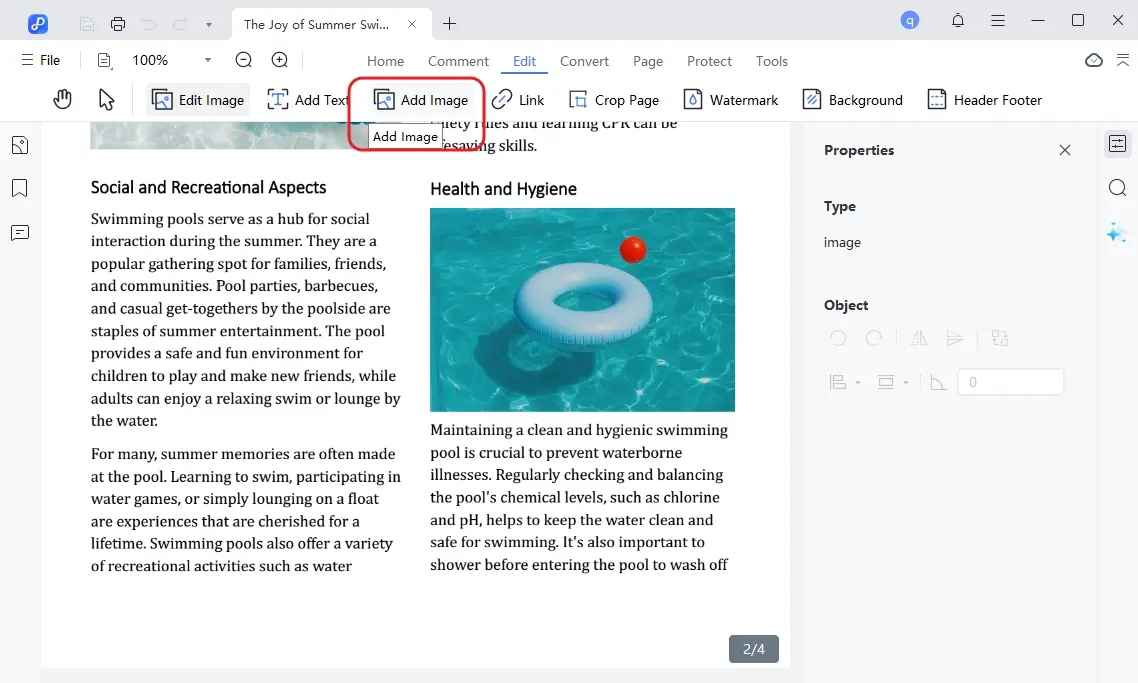
When Adobe Acrobat keeps freezing, the quickest way to continue your work is to switch to a tool that opens faster and runs smoothly on any computer. One of the best options is PDNob. It’s designed to load PDFs instantly, handle large files without lag, and give you all the essential tools you need without the heaviness of Acrobat.
If your goal is to open, edit, or convert PDFs without crashes, PDNob is a reliable and easy alternative that beginners and professionals can use comfortably.






Sometimes, Acrobat freezes due to temporary glitches or background processes that get stuck. Restarting the application or the system can clear these minor errors.

Corrupted or problematic entries in Acrobat’s Recent Files list can cause the program to freeze immediately upon launch. Clearing the list can prevent repeated crashes.


After clearing, try opening PDFs stored locally on your computer first, rather than network drives, to avoid conflicts that can trigger Adobe not responding errors.
Outdated versions of Acrobat are a common reason for Adobe DC not responding, as older builds may contain bugs that Adobe has already patched. Even if your Creative Cloud shows the software as updated, a manual check often finds optional updates that fix freezing issues.

On Windows, restricted permissions or conflicts with security software may prevent Acrobat from accessing certain system resources, causing it to freeze. Running Acrobat as an administrator ensures it has the necessary access.

Optional Step: For a permanent fix, you can set Acrobat to always run as administrator:
If the basic fixes did not solve the problem, it’s time to move on to deeper troubleshooting. Many users experience Adobe Acrobat freezing, or sudden hangs while opening or editing PDFs. Below are six advanced methods to resolve these problems effectively.
A corrupted or incomplete installation of Acrobat is one of the most common reasons for Adobe Acrobat not responding. Using the built-in repair function can replace missing or damaged files without requiring a full reinstallation.

Corrupted preference files can cause repeated freezing, slow responses, or unexpected crashes in Acrobat. Resetting preferences restores all default settings without affecting your PDF documents.


Many users report that the latest updates introduce new templates, tools, or interface changes that can cause Acrobat to freeze. Disabling the new UI or features often fixes Adobe Acrobat DC not responding problems.

Insufficient system resources or low disk space can make Acrobat freeze, especially with large or complex PDFs. Ensuring your system has enough free space and memory helps prevent Adobe Acrobat freezing issues.

Third-party plugins, extensions, or add-ons can sometimes conflict with Acrobat, causing crashes or slow performance. Disabling unnecessary plugins often resolves Adobe Acrobat DC not responding errors.

If all other steps fail, a full cleanup and fresh installation may be required. Adobe provides a Cleaner Tool to completely remove Acrobat and all related files, ensuring no residual or corrupted data remains.

Your PDF may be unresponsive due to a large file size, corrupted pages, outdated Adobe Acrobat/Reader, low system memory, or conflicts with plugins or antivirus tools.
Force-close Acrobat, reopen it, and then try Help > Repair Installation. Updating Acrobat, disabling plugins, or resetting preferences also helps fix the Adobe Reader not responding issue.
This usually happens when the PDF is too large, corrupted, or when printer drivers are outdated. Low RAM or incompatible PDF formats can also trigger Adobe Acrobat not responding during print or combine actions.
Free up storage, close background apps, disable plugins, and turn off the new Acrobat interface. Older systems may struggle with heavy PDFs, so reducing load helps prevent Acrobat freezing.
Fixing Adobe Acrobat not responding issues becomes much easier when you follow the right steps starting from simple resets to deeper system checks. Most freezes come from outdated versions, heavy PDFs, or system conflicts, and addressing these usually restores smooth performance.
If Acrobat continues to lag or crash, switching to a stable and lightweight tool is the smartest choice. Tenorshare PDNob PDF Editor is fast, reliable, and easy to use, making it an excellent alternative for everyday PDF work.


PDNob PDF Editor Software- Smarter, Faster, Easier




 The END
I am PDNob.
Swift editing, efficiency first.
Make every second yours: Tackle any PDF task with ease.
As Leonardo da Vinci said, "Simplicity is the ultimate sophistication." That's why we built PDNob.
then write your review
Leave a Comment
Create your review for Tenorshare articles
Share this post


PDNob 2.1 - Rebuilt, Faster & Smarter PDF Editor
Major Update: Upgraded PDFium, evolved Al & OCR, and dark mode.
PDNob 2.1 - Rebuilt, Faster & Smarter PDF Editor
Major Update: Upgraded PDFium, evolved Al & OCR, and dark mode.
By Jenefey Aaron
2026-09-15 / Knowledge