







PDNob 2.1 - Rebuilt, Faster & Smarter PDF Editor
Major Update: Upgraded PDFium, evolved Al & OCR, and dark mode.
PDNob 2.1 - Rebuilt, Faster & Smarter PDF Editor
Major Update: Upgraded PDFium, evolved Al & OCR, and dark mode.
Why does Adobe DC keeps crashing every time I try to edit a big PDF on Windows 11?
Many users wonder why does Adobe Acrobat keep crashing when they try to open or edit PDFs. Frequent crashes on Windows 11, Windows 10, Mac, or even Android can interrupt work and cause frustration. This guide covers quick fixes, advanced solutions, and reliable alternatives to stop Adobe Acrobat keeps crashing issues effectively.
The all-in-one PDF editor for professionals and individuals. Edit, convert, OCR, and manage PDFs smarter and faster.
Many users experience the frustrating issue where Adobe Acrobat keeps crashing, often without clear reasons. Crashes can happen while opening large PDFs, editing files, or even just launching the program. On Windows 11, Windows 10, Mac, or Android, these interruptions can severely impact productivity.
There are several common reasons why Adobe Acrobat keeps crashing:
If you keep experiencing that Adobe DC keeps crashing, the following quick fixes are the first steps to try. They are simple, effective, and often solve most common issues across Windows 11, Windows 10, and Mac.
Using an outdated version of Acrobat often leads to instability. Updates include bug fixes, performance improvements, and compatibility enhancements that directly reduce crashes.


Enabling automatic updates ensures you always have the latest fixes and security patches.
Operating system incompatibility is a frequent reason why Adobe Acrobat keeps crashing. Missing system libraries, outdated drivers, or unpatched security updates can interfere with Acrobat’s operation.
Corrupted program files can prevent Acrobat from running or cause it to crash while opening or editing PDFs. Repairing the installation restores missing or damaged files without deleting user preferences. This method is especially useful if crashes began after a failed update or partial installation.


When repairing does not resolve the issue, a complete reinstall ensures all corrupted files, leftover settings, or conflicting components are removed.
Some crashes occur due to restricted permissions preventing Acrobat from accessing essential system files or network resources. Running Acrobat as administrator ensures it has full access to perform necessary operations.

If quick fixes fail to stabilize Acrobat, the root causes are often more complex, including license corruption, cached data issues, plugin conflicts, or system-level errors. These advanced fixes target the underlying factors that commonly cause Adobe Acrobat keeps crashing across platforms.
Adobe Acrobat Crashes can result from corrupted or improperly activated licenses, especially for users with subscription versions of Acrobat. When a license fails to validate, Acrobat may close unexpectedly, fail to load certain features, or crash during startup.

Adobe Acrobat relies on license validation services in the background; if authentication fails or license files are damaged, key modules may not load correctly, resulting in memory errors or unexpected crashes.
This step is crucial after migrating Acrobat to a new machine, reinstalling the OS, or updating Creative Cloud subscriptions. Failing to reset licenses in such cases is a common reason for persistent crashes.
On macOS, Adobe stores license and preference data in Keychain and configuration directories. Corruption in these files can prevent Acrobat from initializing correctly, causing repeated crashes even if the application is fully updated.
Only reset license files on macOS if crashes persist after standard quick fixes. Always backup important preferences before deletion.
Some crashes are caused by subtle system conflicts, corrupted preferences, or rare bugs that are not resolved by reinstalling. Acrobat Diagnostics Tool allows users to generate detailed logs to identify the root cause.

This method is particularly valuable for IT administrators managing multiple machines or complex workflows where crashes are intermittent or difficult to reproduce.
Crashes during digital signing or Fill & Sign operations often indicate corrupted cache files used for storing signature credentials and settings. Removing these caches forces Acrobat to recreate them cleanly.
Only perform this step if crashes occur during signing or form-filling. Other functionality is unaffected.
Third-party plugins, outdated extensions, or conflicting system software can interfere with Acrobat processes, causing instability or memory errors. Identifying and isolating these conflicts can stabilize Acrobat.

Note: This step is particularly useful if crashes began after installing new software, Acrobat updates, or security patches. Test after disabling plugins individually to pinpoint the cause.
Even after applying quick and advanced fixes, some users may encounter specific crashes. Understanding the underlying causes helps select the right solutions for Adobe Acrobat keeps crashing.
If Adobe Acrobat keeps crashing despite all troubleshooting, it may be time to consider a more stable and lightweight alternative. PDNob is designed to cover all essential PDF tasks without overwhelming users with unnecessary complexity.
Unlike some feature-heavy PDF software, PDNob PDF Editor focuses on stability, speed, and ease of use, making it ideal for everyday PDF handling. Users can perform editing, annotation, signing, and format conversion without navigating through countless menus or waiting for heavy processes to load.






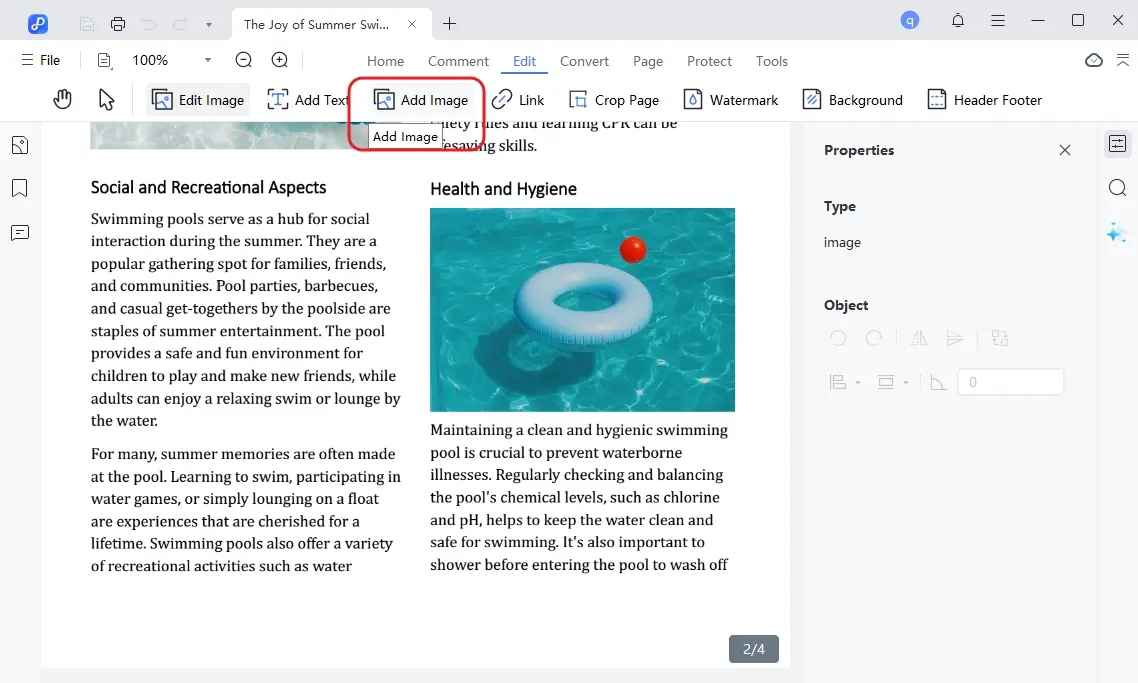
Frequent crashes, slow performance, and errors like Adobe Acrobat keeps crashing can disrupt daily PDF work. While quick fixes and advanced troubleshooting often solve these issues, some users still face instability due to corrupted files, system conflicts, or licensing problems. For a stable alternative, PDNob is reliable, lightweight, and covers all essential PDF tasks at an affordable price.


PDNob PDF Editor Software- Smarter, Faster, Easier




 The END
I am PDNob.
Swift editing, efficiency first.
Make every second yours: Tackle any PDF task with ease.
As Leonardo da Vinci said, "Simplicity is the ultimate sophistication." That's why we built PDNob.
then write your review
Leave a Comment
Create your review for Tenorshare articles
Share this post


PDNob 2.1 - Rebuilt, Faster & Smarter PDF Editor
Major Update: Upgraded PDFium, evolved Al & OCR, and dark mode.
PDNob 2.1 - Rebuilt, Faster & Smarter PDF Editor
Major Update: Upgraded PDFium, evolved Al & OCR, and dark mode.
By Jenefey Aaron
2026-09-24 / Knowledge