
 iOS Tips & Latest Updates
 Bug Fixes, Unlock Guides
 Giveaways & Freebies


ReiBoot - No.1 Free iOS System Repair Software
Fix 150+ iOS Issues without Data Loss & Safely iOS 27 Upgrade/Downgrade
ReiBoot: No.1 iOS Repair Tool
Fix 150+ iOS Issues, No Data Loss
Is your iPhone 17e not charging? It can be frustrating when your phone won’t power up, but don’t worry—there are simple fixes! Charging issues can happen due to a faulty cable, a dirty charging port, or software glitches. In this guide, we’ll explain why your iPhone 17e isn’t charging and provide easy solutions to fix it. Whether it’s a minor issue or something more serious, you’ll find step-by-step troubleshooting tips to get your phone working again.
If your iPhone 17e won’t charge, don’t worry! There are a few common reasons why this happens:
Your iPhone 17e won’t charge, don’t panic. There are several possible reasons why your device might not be charging, ranging from a faulty cable to software issues. Below, we’ll go through the best troubleshooting steps to get your iPhone 17e charging again.
iPhone 17e won’t charge, check the cable and adapter first. A faulty or non-certified charger may not provide enough power. Use an Apple-certified charger and a reliable power source. Avoid cheap third-party accessories that can damage your device.
Here’s what you can do:
A clogged charging port can prevent your iPhone 17e from charging when plugged in. Dust, lint, and debris can block the connection, stopping power from reaching the battery. Use a soft brush, toothpick, or compressed air to clean it carefully. Be gentle to avoid damaging the charging pins. If your iPhone 17e won’t charge, a clean charging port can restore proper charging function.
Your iPhone 17e is not charging, the issue may not be with the hardware but with the software. System glitches can interfere with charging, but the quickest and most effective way to fix this is by using Tenorshare ReiBoot. This powerful tool repairs iOS system issues in minutes, making sure your iPhone runs smoothly without losing data.
Instead of struggling with manual fixes, ReiBoot provides a one-click solution to restore normal charging functionality. Whether your iPhone is stuck on the Apple logo, has a black screen, or won’t charge, ReiBoot can resolve it instantly.





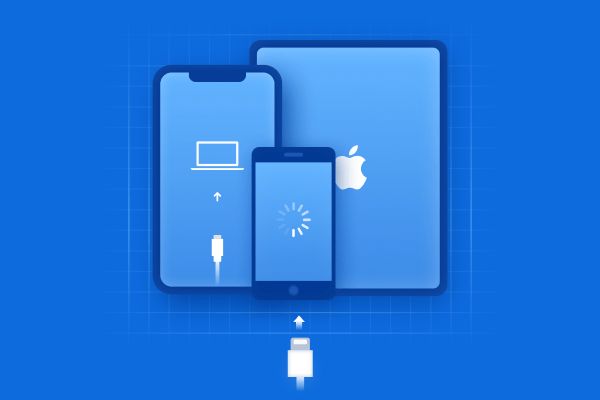
Open ReiBoot on your computer and connect your iPhone 17e using an Apple-certified Lightning cable. Once detected, click 'Start Repair' to access iOS System Recovery.

Choose 'Standard Repair' to fix the issue without losing data. Read the instructions carefully and click 'Standard Repair' to proceed.

Click 'Download' to get the latest firmware package. This may take a few minutes.

Wait for ReiBoot to complete the repair. Your iPhone 17e should now charge properly without any issues.

A simple restart can fix many issues, including when your iPhone 17e won’t charge. Minor software glitches might prevent your device from detecting the charger. Restarting refreshes the system and often resolves iPhone 17e charging issues.

iPhone 17e does not charge, the issue may be with the power source. Some outlets or USB ports may not provide enough power. This is a simple fix when your iPhone 17e won’t charge, making sure your device receives stable power from a working source.
I try these steps:
Your iphone se 4 not charging when plugged in it’s too hot. iPhones have a built-in safety feature that stops charging when the temperature is too high. If you’ve been using your device heavily or it was in direct sunlight, let it cool down for a few minutes before plugging it in.
To fix this:
Persistent iPhone 17e charging issues may be due to incorrect system settings. Resetting all settings can fix hidden software problems without erasing your data.

If your iPhone 17e won’t charge with a cable, try wireless charging (if supported). Place your device on a Qi-certified charger and see if it starts charging. If your iphone se 4 not charging on wireless charger, remove the case, reposition the phone, and make sure the charger is plugged in properly.
iPhone 17e is not charging wirelessly, check if it supports wireless charging. Ensure the charger is Qi-compatible, properly aligned, and plugged in. Also, remove thick cases that may block charging.
When you place your iPhone 17e on a Qi-certified charger, wireless charging is enabled by default. Simply check that your device is centered on the pad and connected to electricity.
Having trouble with your iPhone 17e not charging? First, inspect your cable, adapter, and charging port for any damage or debris. If everything looks fine, software glitches could be the issue. The best fix is Tenorshare ReiBoot, a reliable tool that resolves iOS problems quickly. It can repair iPhone 17e charging issues without data loss. With just a few clicks, your device will charge normally again.


then write your review
Leave a Comment
Create your review for Tenorshare articles
Share this post


ReiBoot - No.1 Free iOS System Repair Software
Fix 150+ iOS Issues without Data Loss & Safely iOS 27 Upgrade/Downgrade
ReiBoot: No.1 iOS Repair Tool
Fix 150+ iOS Issues, No Data Loss
By Sophie Green
2026-10-26 / iPhone SE 4