Call Screening in iOS 26/27: Setup Guide + Fix Not Working Issues

authorPic

By Jenefey Aaron

2026-11-06 / iOS 26

Apple's Call Screening feature in iOS 26 helps you manage calls from unknown numbers by asking callers to identify themselves before your iPhone rings. If Call Screening isn't working, the issue may be related to its settings, language availability, or an iOS software glitch. This guide explains how the feature works, how to enable it, and six ways to troubleshoot iOS 26 call screening not working .

ios 26 call screen not working from reddit

Part 1: What is Call Screening in iOS 26/27?

Apple introduced Call Screening in iOS 26 to help users manage calls from unknown numbers. When enabled, the feature can automatically answer an incoming call from an unsaved number and ask the caller to provide their name and reason for calling. Your iPhone then displays the caller's response so you can decide whether to answer.

Here are its main features:

  • Automatic call screening:: Your iPhone answers calls from unknown numbers and asks callers to identify themselves before ringing.
  • Caller response: You can review the caller's name and reason for calling before deciding whether to answer.
  • Unknown caller management: You can choose how your iPhone handles calls from numbers that aren't saved in your contacts.
ios 26 call screen interface

Call Screening vs. Hold Assist

Call Screening and Hold Assist are two separate iPhone features:

  • Call Screening helps you manage incoming calls from unknown numbers before you answer.
  • Hold Assist detects when a live representative becomes available while you're waiting on hold and notifies you so you can return to the call.

These new tools bring smarter, more private ways to handle calls—whether it's avoiding robocalls or multitasking during long hold times.

Part 2. How to Turn On Call Screening on iPhone iOS 26/27

Unlike certain other iOS 26/27 features, Call Screening isn’t enabled by default—you’ll have to turn it on manually:

  • Open the Settings app.
  • Scroll down and tap Apps.
  • Choose the Phone app.
  • Scroll to Screen Unknown Callers.
  • Select Ask Reason for Calling to enable Call Screening.
  • how to open ios 26 call screen

Once you open this setting, you'll see three options for handling calls from unknown numbers. Here's what each option means:

swiper icon Please swipe to view
Option
What it does
Never
Turns off Call Screening. Calls from unknown numbers ring normally.
Ask Reason for Calling
Asks unknown callers for their name and reason for calling before your iPhone rings.
Silence
Silences calls from unknown numbers and sends them to voicemail.

Part 3: Why Is iOS 26/27 Call Screening Not Working?

If Call Screening isn't working as expected, check these possible causes before trying more advanced troubleshooting steps:

  • The feature is disabled: If the setting is set to Never, your iPhone won't screen unknown callers.
  • Language availability Call Screening supports specific languages. If your iPhone's language isn't supported, the feature may not work as expected.
  • Region availability: Apple makes some features available only in certain countries or regions. Check whether Call Screening is supported where you use your iPhone.
  • Outdated iOS software: An older software version may contain bugs that affect Phone app features.
  • Temporary software glitches: A system or Phone app issue may prevent Call Screening from working correctly.
book icon
Note:

Call Screening and Hold Assist have different language and regional availability. Check Apple's official iOS and iPadOS Feature Availability information rather than assuming that support for one feature means the other is also available.

Part 4: How to Fix Call Screening iOS 26/27 Issues (4 Proven Ways)

iPhone call screening settings not working for you, here are 4 simple ways to get things back on track. These steps can help you fix call screening iOS 26/27 issues quickly no tech skills required.

Method 1: Check iOS Version and Update if Needed

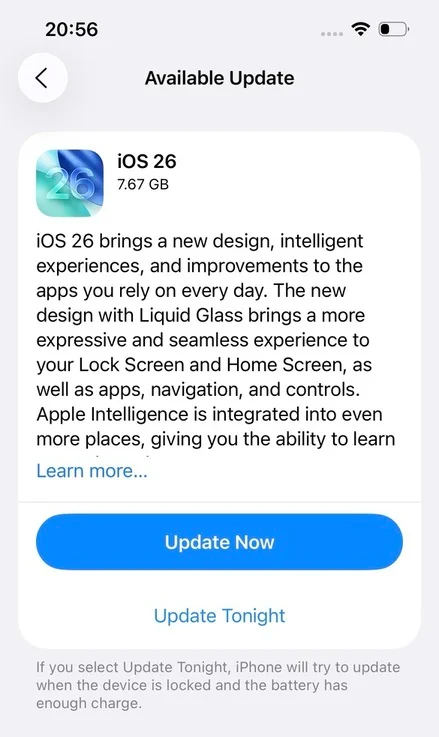
One of the most common reasons call screening and hold assist iOS 26/27 doesn’t work is because the iOS version is outdated or incomplete. Apple often releases small updates after major versions to fix bugs and improve new features like call screening.

  • Open the Settings app from your home screen.
  • Scroll down and tap General.
  • Select Software Update from the list. If a new update is available, tap Download and Install.
  • ios 26 download
  • Follow the prompts, agree to any terms, and let your iPhone restart once the update is complete.

Method 2: Restart Your iPhone

The fastest fix for iOS 26/27 call screening issues may be to restart your iPhone. This quick step refreshes your device’s background processes, clears out temporary issues, and often brings back missing features like call screening and hold assist without any extra effort.

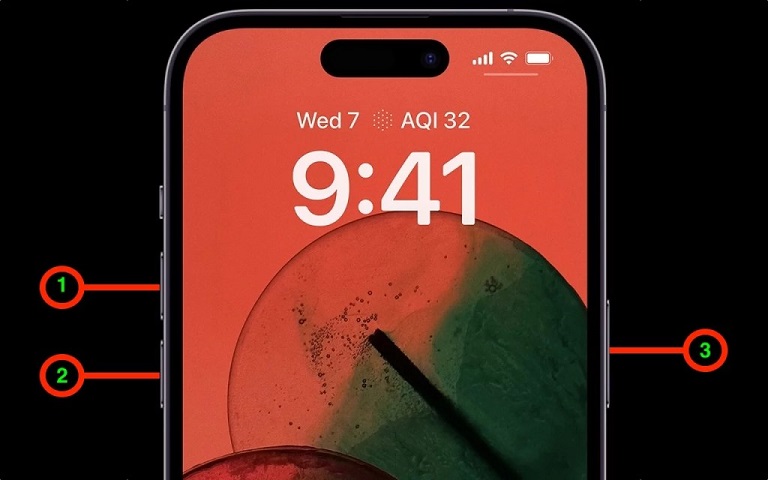
  • Press and hold the Side button along with the Volume Up or Down button until the power-off slider appears on your screen.
  • Slide to power off your iPhone and wait for the screen to go completely black.
  • After about 10–15 seconds, press and hold the Side button again until the Apple logo shows up.
force restart iphone

Method 3: Set Correct Language & Region

Incorrect Language & Region settings can affect how some iOS features work, including call screening and hold assist iOS 26/27. If your iPhone isn’t set to a supported language or country, the feature may stay disabled or glitchy. Adjusting these settings often helps fix call screening iOS 26/27 effectively.

  • Go to your iPhone's Settings.
  • Tap General.
  • Now tap on Language & Region.
  • Under iPhone Language, make sure it's set to English (United States) or another region known to support iOS 26/27 call features.
  • Check the Region setting and change it to United States if it's set to a region where call screening might be restricted.
  • language & region
  • After making changes, restart your iPhone to apply the new settings.
  • Test the call screening function again by receiving a call from an unfamiliar number.

Method 4: Fix iOS 26/27 Call Screening Issue with ReiBoot (No Data Loss)

Tenorshare ReiBoot can help if you're still having iOS 26/27 call screening issues. It’s a professional iOS repair tool that’s made for people who want to fix system problems without losing their data. Whether your call screening and hold assist iOS 26/27 features aren’t working or your iPhone is freezing, ReiBoot offers a one-click solution. It works smoothly with all iOS versions and is perfect for non-technical users who just want their iPhone working again fast, safe, and without hassle.

Top Features of Tenorshare ReiBoot:

  • Repairs over 150+ iOS system issues (call, screen, update errors, etc.)
  • No data loss using Standard Repair mode
  • Compatible with iOS 26/27 and all earlier versions
  • One-click Recovery Mode (enter/exit easily)
  • Simple interface for all user levels
  • Secure and trusted by millions worldwide

Here how to fix iOS 26/27 call screening not working with Tenorshare reiboot:

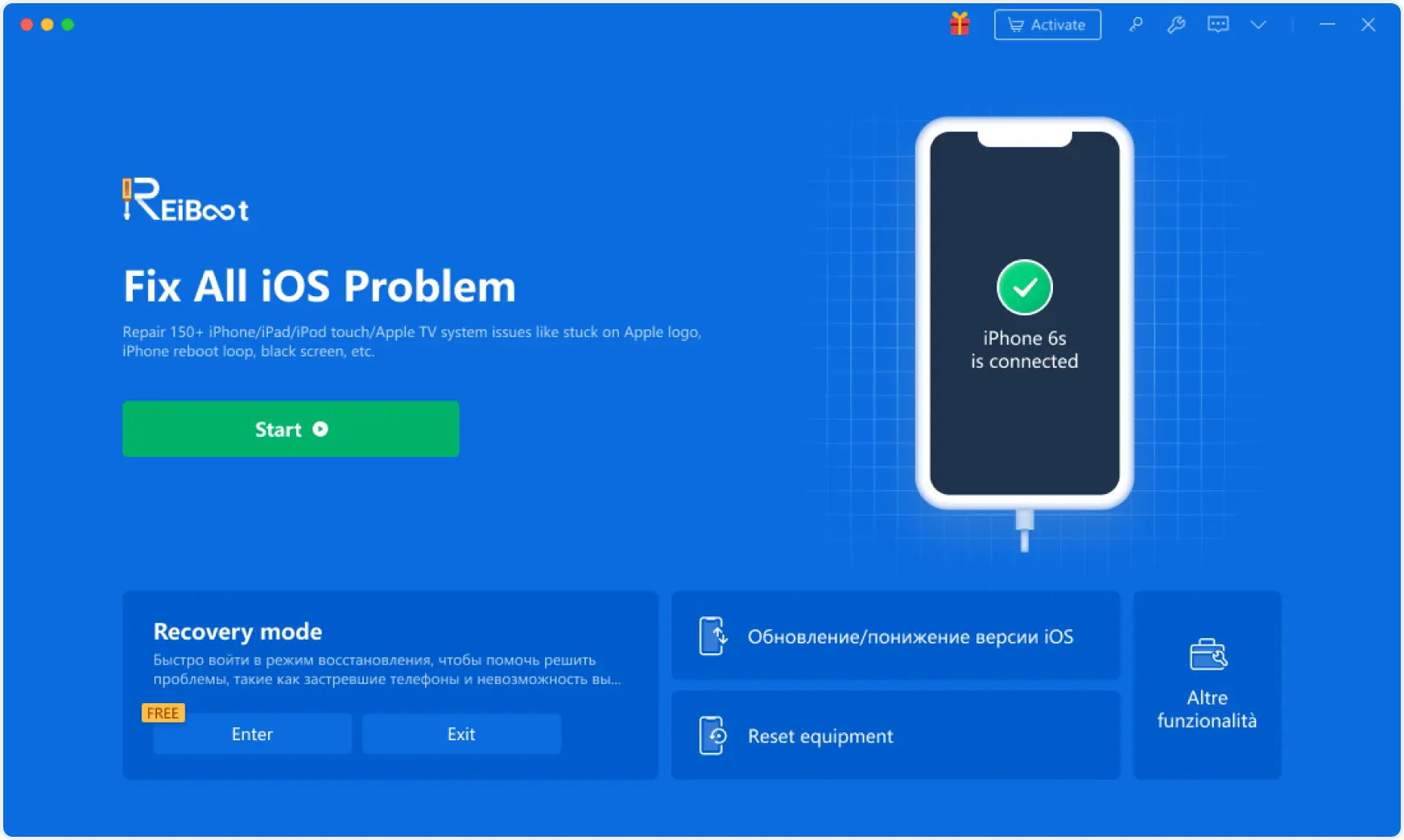
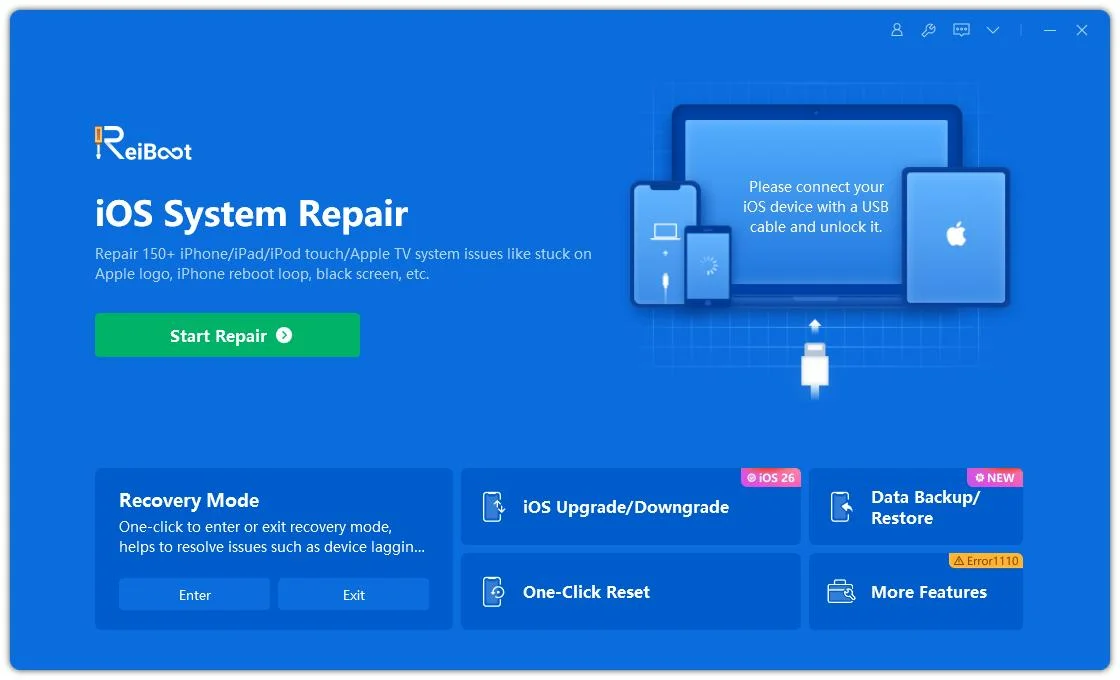
  • Download and install ReiBoot on your computer. Open the program and plug your iPhone into the computer. Click the "Start" button to begin the iOS System Recovery process.
  • iosbootadasd-3
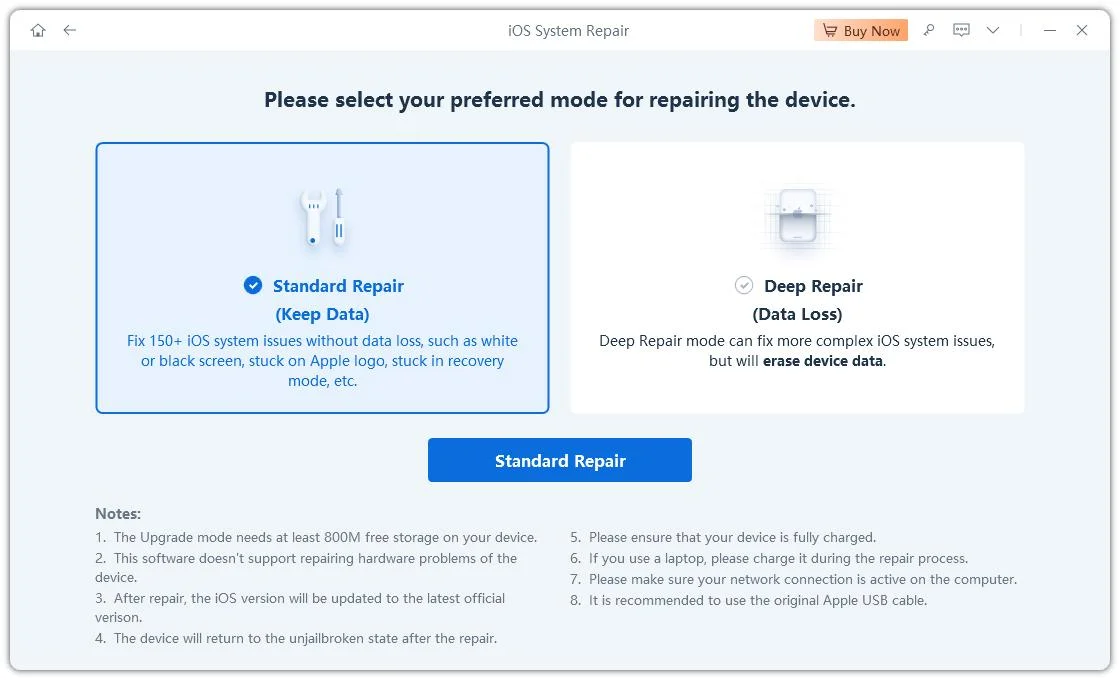
  • Click on Standard Repair. Make sure to read the note below carefully so you don’t make any mistakes.
  • iosbootadasd-3
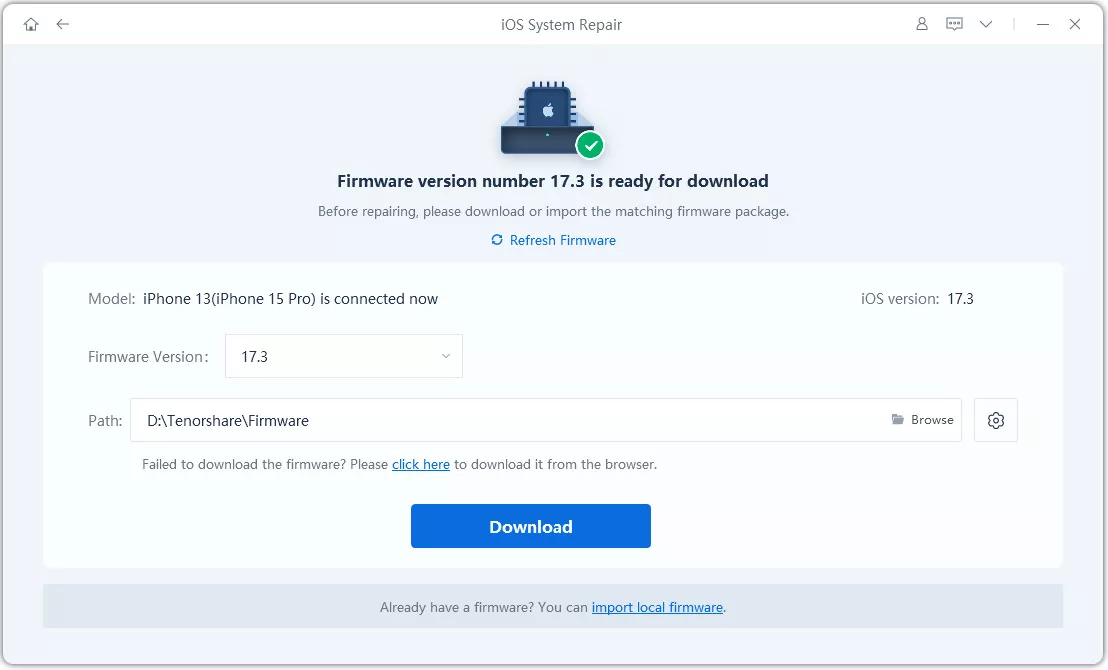
  • Download the firmware package. If you already have the firmware file, you can also import it manually.
  • iosbootadasd-3
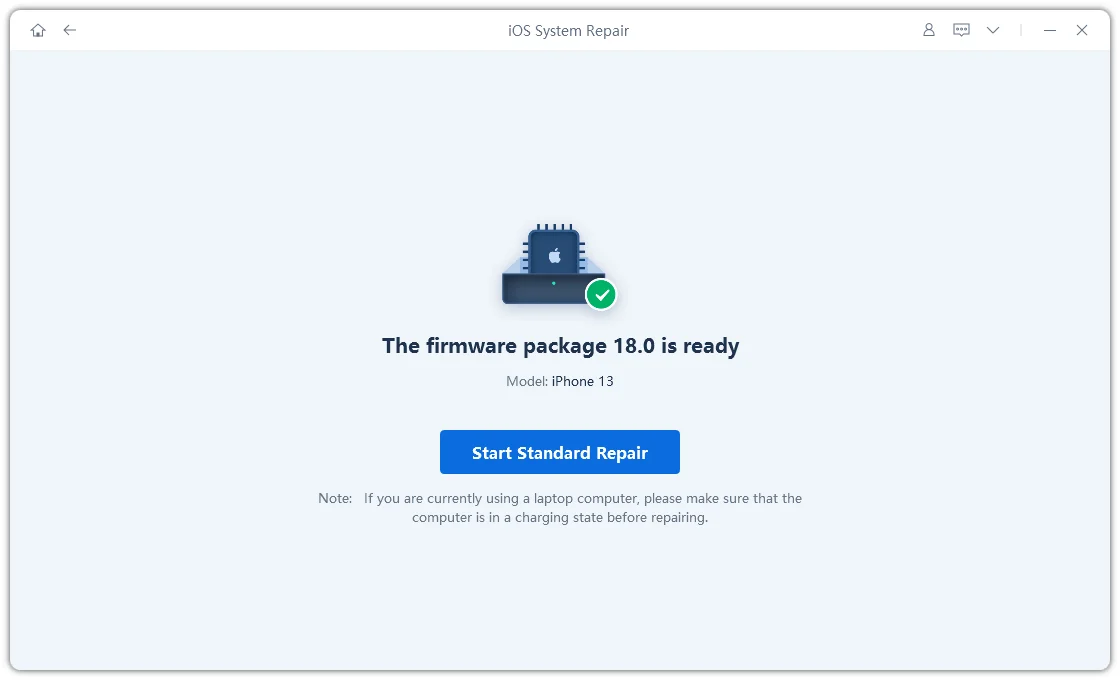
  • Click Start Standard Repair. Wait while the software fixes your device.
  • iosbootadasd-3
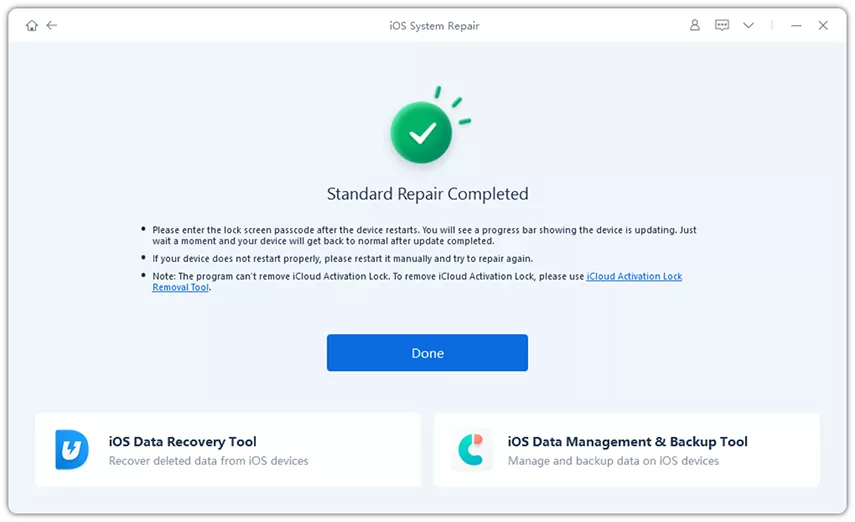
  • When the repair is finished, your device will restart normally, so you can try updating to iOS 26/27 again with experiencing call screen feature normally.
  • iosbootadasd-3

Method 5: Test Call Screening with an Unknown Number

Before assuming that Call Screening is broken, make sure you're testing it with an eligible incoming call.

  • Ask someone whose number isn't saved in your Contacts to call your iPhone.
  • Make sure Call Screening is set to Ask Reason for Calling.
  • Watch your screen to see whether your iPhone asks the caller to provide their name and reason for calling.
  • If the screening prompt appears, the feature is working as expected. If it doesn't, continue with the other troubleshooting steps.

Method 6: Disable Third-Party Call-Blocking Apps

If you use third-party apps to identify callers or filter spam calls, temporarily disable their call identification and blocking features to check whether they're interfering with Apple's built-in Call Screening.

  • Open Settings on your iPhone.
  • Go to Apps > Phone or the Phone settings available on your iOS version.
  • Find Call Blocking & Identification.
  • Temporarily turn off the enabled third-party call identification or blocking services.
  • Ask someone with an unsaved number to call you again and check whether Call Screening works.

Conclusion:

iOS 26/27 call screening is not working specially when you're relying on it to avoid unwanted interruptions. While minor tweaks in settings can help, deeper issues may need a smarter solution. That’s where Tenorshare ReiBoot steps in. This powerful tool fixes system-level glitches, including call screening and Hold Assist issues, without wiping your data. With just one click, you can repair your iPhone, upgrade, or even downgrade from iOS 26/27 easily.

img
Hey! 👋 Welcome to Apple tech Hub!
Need help iPhone setup guide?
New Guide iOS 27 Tips & Tricks 🎉

Apple Tech Hub

  • icon iOS Tips & Latest Updates
  • icon Bug Fixes, Unlock Guides
  • icon Giveaways & Freebies
Join Now
img

Speak Your Mind

Registrer/ Login

then write your review

Speak Your Mind

Leave a Comment

Create your review for Tenorshare articles
Related articles

All topics

Share this post

Tenorshare ReiBoot

ReiBoot - No.1 Free iOS System Repair Software

Fix 150+ iOS Issues without Data Loss & Safely iOS 27 Upgrade/Downgrade

ReiBoot: No.1 iOS Repair Tool

Fix 150+ iOS Issues, No Data Loss