

 iOS Tips & Latest Updates
 Bug Fixes, Unlock Guides
 Giveaways & Freebies

ReiBoot - No.1 Free iOS System Repair Software
Fix 150+ iOS Issues without Data Loss & Safely iOS 27 Upgrade/Downgrade
ReiBoot: No.1 iOS Repair Tool
Fix 150+ iOS Issues, No Data Loss
An iPad blue screen can appear while you're using an app, during startup, or after an iPadOS update. Sometimes the device becomes unresponsive or repeatedly restarts; in other cases, the screen flashes blue briefly before the Apple logo appears and the iPad starts normally. These situations may have different causes, so start by identifying what your iPad is doing before choosing a fix.

 Please swipe to view
A blue screen does not identify one specific iPad fault. The timing, duration, and other symptoms can help you decide what to try next.
If the screen stays blue and the iPad doesn't reach the Apple logo or Home Screen, the device may be experiencing a startup or system problem. Try a force restart first. If that doesn't help, Recovery Mode may allow you to update iPadOS through a computer.
A persistent blue screen is different from a brief flash during startup, so note whether the iPad eventually starts normally.
If the issue began after an update, a software problem is worth investigating. However, the timing alone doesn't prove that the update caused it.
If the iPad is still usable, check for a newer update. If it cannot start normally, try a force restart and consider Recovery Mode.
If the screen turns blue while you're watching a video, playing a game, or using another app, note what was happening at the time. If the iPad recovers, check whether the app has an available update and whether the problem occurs again.
One incident isn't enough to establish that an app is responsible, so avoid assuming a cause without further evidence.
If the blue screen started after a drop, liquid exposure, or screen repair, physical damage may be involved. Repeated software troubleshooting may not resolve a damaged display or internal component.
If the iPad is unusually hot, visibly damaged, or showing signs of liquid exposure, stop troubleshooting and seek appropriate repair advice.
Not every blue screen means the iPad is stuck. Some iPad Pro M5 owners have reported a blue flash lasting only a fraction of a second before the Apple logo appears.
In a Reddit discussion about the iPad Pro M5, one owner reported that the blue flash appeared during a restart even though the iPad otherwise worked normally. Other commenters described seeing the same behavior on their devices.
A separate discussion about a blue flash during startup includes users who said the brief flash persisted after updating. These are individual reports, not confirmation of a universal iPadOS bug or a verified hardware diagnosis.
What should you do? If the blue flash lasts only an instant and your iPad starts and works normally, observe whether it recurs and check for relevant updates. If the screen stays blue, startup fails, or other display problems appear, troubleshoot the persistent issue instead.
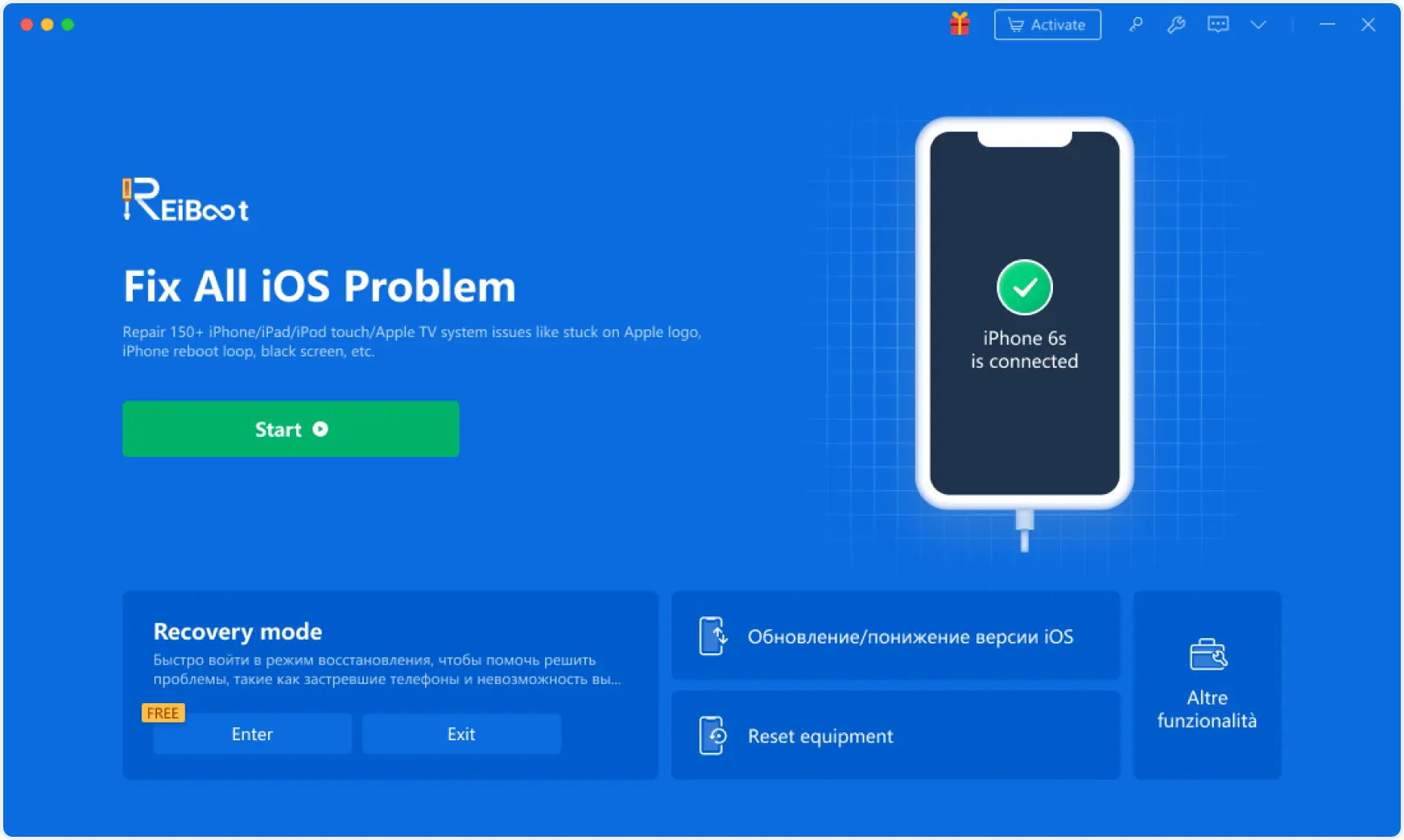
If the blue screen is caused by an iPadOS system issue, Tenorshare ReiBoot for iOS offers a convenient way to try system repair without immediately resorting to a factory restore.


What ReiBoot can do:
Check the official ReiBoot compatibility information to confirm that your iPad and iPadOS version are supported.
How to use ReiBoot for iPad system repair
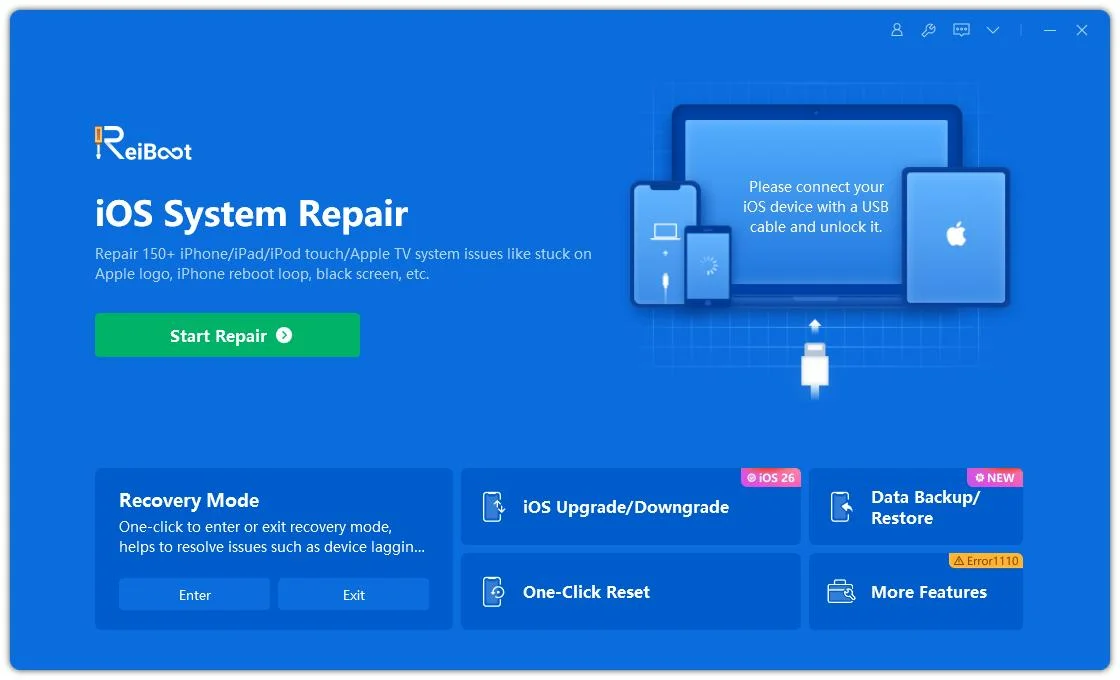
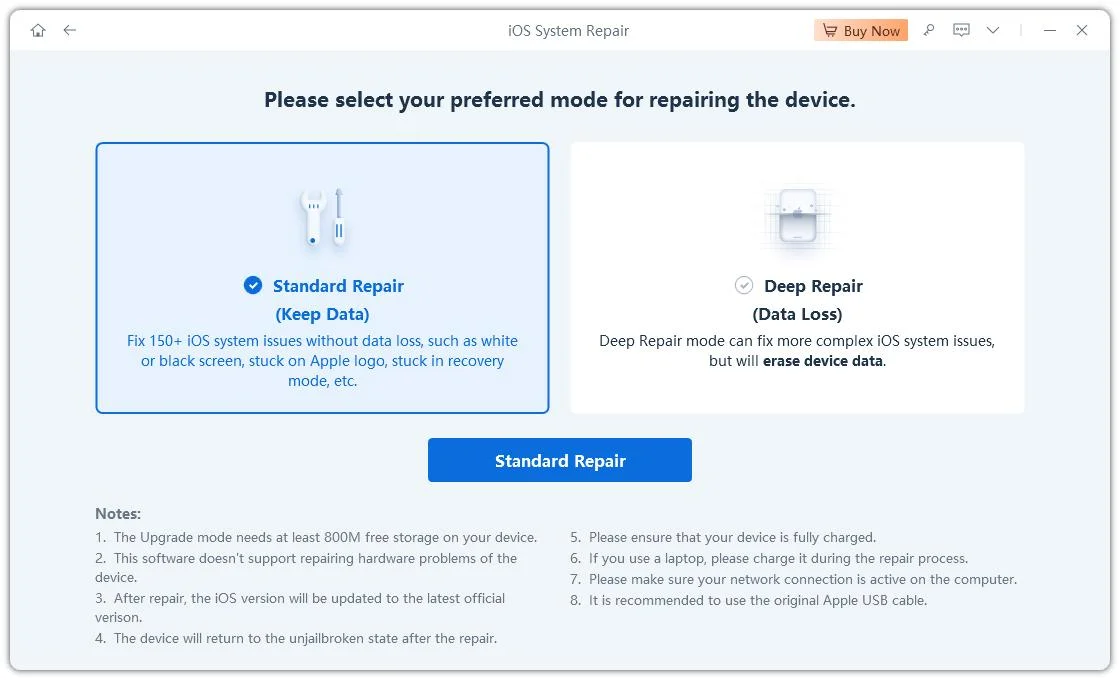
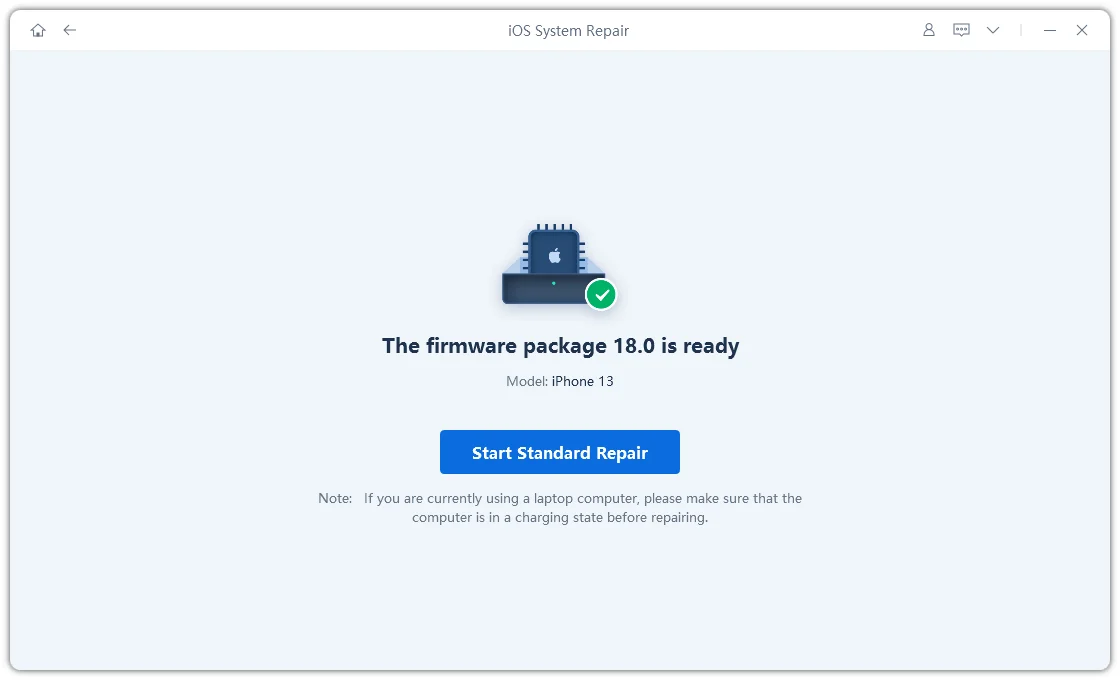
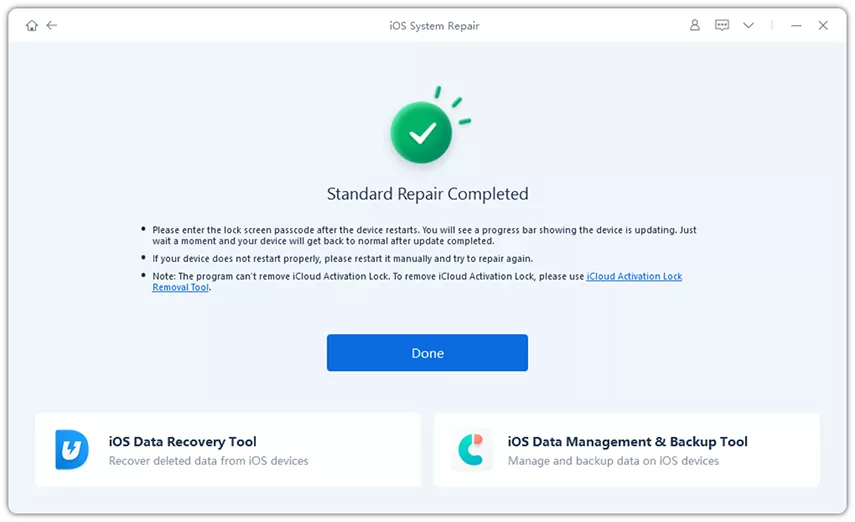
ReiBoot's Standard Repair interface. The same repair workflow is available for supported iPad models.

Standard Repair is designed to preserve personal data, but backing up your iPad beforehand is still recommended whenever possible. Deep Repair erases the device, so review its warning carefully before choosing it.
If you prefer to try a few basic, free troubleshooting methods first, continue with the steps below.
A force restart can help when the iPad is frozen and doesn't respond to touch. It does not intentionally erase your data.
The button combination depends on whether your iPad has a Home button.
For an iPad without a Home button:
For an iPad with a Home button:

If the iPad restarts normally, check whether the blue screen returns during ordinary use. If it remains stuck during startup, try the next method.
For Apple's official instructions, see If your iPad won't turn on or is frozen.
If your iPad starts normally after a restart, check what you were doing when the blue screen appeared.
Back up your iPad before making significant software changes whenever possible. If the blue screen prevents you from accessing Settings, skip this step and try Recovery Mode instead.
If a force restart doesn't help and your iPad remains stuck during startup, you can use Recovery Mode to attempt an iPadOS update through a computer.
You'll need a USB cable and a Mac or Windows PC. On a Mac running macOS Catalina or later, open Finder. On a Windows PC, open the Apple Devices app or iTunes if appropriate for your setup.
Put your iPad into Recovery Mode
For an iPad without a Home button:


For an iPad with a Home button:


Choose Update first
Once your computer detects the iPad and displays the available options, choose Update first. This attempts to reinstall iPadOS while preserving personal data.
Choose Restore only if you're prepared to erase the device. Restore reinstalls the system and deletes the iPad's data, so check your backup situation before proceeding.
If the software download takes a long time and the iPad exits Recovery Mode, allow the download to finish and repeat the Recovery Mode steps if necessary.
For more details, follow Apple's guide: If you can't update or restore your iPad.
When Should You Suspect an iPad Hardware Problem?
Software troubleshooting may not help if a physical component is damaged. Consider a hardware inspection if:
If your iPad contains important data that isn't backed up, tell the repair provider before authorizing a restore or another procedure that could erase it. A system repair tool cannot repair a physically damaged display or internal component.
No. "Blue screen of death" is a descriptive term for a blue-screen problem, not an official Apple diagnosis or a specific error code.
An external display may help with certain display-related troubleshooting situations when the iPad is otherwise functioning and supports the required connection. It will not necessarily help if the iPad is frozen during startup or the system is unresponsive. A blue screen alone isn't enough to determine whether the display or software is at fault.
A force restart does not intentionally erase your files. This differs from choosing Restore in Recovery Mode, which erases the device. If your iPad contains important data, avoid restore or erase operations until you've considered your backup options.
Not necessarily. A persistent blue screen can have different causes, and the device needs to be assessed before deciding whether repair or replacement makes more sense. If software troubleshooting fails or the problem follows physical damage, seek a qualified diagnosis.
No. A brief flash during startup, followed by normal operation, is different from an iPad that remains stuck on a blue screen or cannot start. Some iPad Pro M5 owners have reported the brief flash, but community posts alone cannot establish its cause or confirm that every affected device has the same issue. If the flash continues alongside startup failures or other display abnormalities, contact Apple Support.
An iPad blue screen can range from a persistent startup problem to a brief flash before the Apple logo. Start by checking whether the iPad can restart and operate normally. If it remains stuck, try a force restart and then consider Recovery Mode. For suspected iPadOS system issues, Tenorshare ReiBoot offers another repair option to consider. If the device shows signs of physical damage or remains unresponsive, seek professional inspection. Always understand the data-loss risks before choosing Restore or Deep Repair.


then write your review
Leave a Comment
Create your review for Tenorshare articles

Share this post


ReiBoot - No.1 Free iOS System Repair Software
Fix 150+ iOS Issues without Data Loss & Safely iOS 27 Upgrade/Downgrade
ReiBoot: No.1 iOS Repair Tool
Fix 150+ iOS Issues, No Data Loss
By Jenefey Aaron
2026-11-03 / iPad