
 iOS Tips & Latest Updates
 Bug Fixes, Unlock Guides
 Giveaways & Freebies
then write your review
The Ultimate Guide: How to Use Subtitle Cat for Your Videos
Subtitle Cat is an online tool that lets people easily and quickly get captions from movies. You can get subtitle files from any compatible platform, such as Vimeo, YouTube, and others, with just a few clicks.
Subtitles make things easier to understand, get more people interested, and reach more people around the world for teachers, language learners, and content providers. In this 2026 guide, you'll learn exactly how to use Subtitle Cat and obtain the greatest results.
Show More
The Ultimate Guide: How to Use Subtitle Cat for Your Videos
This short article shows you how to use Subtitle Cat step by step.
Step 1: Obtain the Video Link from Platforms Like YouTube or Vimeo
First, open the video you plan to subtitle. Make sure it is playing correctly before continuing.
If you are using YouTube, highlight the web address shown in your browser's address field. Then copy the full link.
For Vimeo or similar platforms, locate the share option. Copy the provided sharing URL from there.
2.Step 2: Enter the Link into the Search Field
Now move to the Subtitle Cat website. Open the homepage in your browser.
Find the primary search box displayed on the screen. It is usually centered.
Paste the copied video link into that input area. Double-check to ensure it is correct.
Click the “Search” or “Extract” option to proceed. The platform will begin scanning the video for available caption tracks.

Step 3: Select Your Preferred Language
After processing completes, a list of available subtitle languages will appear.
Review the options carefully. Then choose the language you would like to download from the displayed menu.You can get more than one if there are several choices.
Important: The quality may not be as good if there are only automatically made captions.

Step 4: Click Download (SRT or TXT Format)
- Finally, choose either the TXT or SRT format.
- Click the button that says "download."
- Save the file on your device.
- Now you can edit, upload, or insert your subtitle file in your project.
- That is all you need to do to use Subtitle Cat well.
Professional Advice for Maximizing Subtitle Cat
Downloading captions is useful. However, applying them strategically is even more beneficial.
1. Including Subtitles in Multiple Languages
If your goal is to connect with an international audience, consider downloading captions in several languages. This approach expands accessibility. It also improves global engagement.
Reaching viewers worldwide requires thoughtful preparation. Multilingual subtitle files can significantly increase your content’s impact.
Some benefits are:
- Having a bigger presence around the world
- Longer viewing times in markets that don't speak English
- Making things easier to get to
2. Choosing between TXT and SRT formats
Knowing formats saves time later.
When to Use SRT
- Adding subtitles directly to YouTube or importing them into video editing software
- Keeping track of timestamps
- Automatic synchronization is possible with time codes in SRT files
When to Use TXT
- Extracting raw transcript text
- Creating blog articles is one practical use for subtitle text
TXT documents that are manually converted do not contain time markers. Because of this, they are simple to manage. They also work well when repurposing written material for other platforms.
Consider your objective carefully. Decide what result you want before selecting a format.

3. Managing Auto-Generated vs. Manual Captions
Subtitle Cat gets the captions that are provided on the platform. Before downloading anything, check for the “CC” symbol on YouTube. This indicates whether captions are available. Next, confirm whether the subtitles were manually created or automatically generated by software.
In most cases, human-written captions provide greater accuracy and fewer mistakes. There could be problems in the timing or spelling of captions that were made automatically. Before you post subtitles, you should always read them over.
Bonus Tip – Your Video Is Ready, But What About Your Thumbnail?
The subtitles keep people watching. But the cover is what links them. Even if your descriptions are perfect, people may still skip your video if your thumbnail is boring or seems like it was made by a kid. In this case, PixPretty is helpful.
PixPretty is an AI-powered tool that helps artists who want polished, attractive thumbnails improve their portraits. When your thumbnail shows your face, it should look clean, bright, and professional.

Here's how PixPretty helps:
- Straighten Out Messy Hair
- Perfect Skin
- Remove Face Shine and Enhancement
Studio lights and movement can often make hairlines look uneven or cause flyaways. PixPretty fills in gaps and smooths out messy hair in a very natural way. You can smooth your hair right away instead of having to take new images. Because of this, your thumbnail looks ready for the studio.
Ring lights can make skin look better by bringing out its imperfections and texture. PixPretty keeps your skin's natural features while softly smoothing it down. It also gets rid of the oily shine that comes from light reflections.What happened? A look that is smooth and clean without being too filtered.
Bright lights can make the cheekbones and forehead glow in a way that you don't like.
This makes creators look more friendly, confident, and lively, which all help to get more clicks. Remember that subtitles make the viewing time longer. Thumbnails make more people click. Both are needed.




How to Use PixPretty
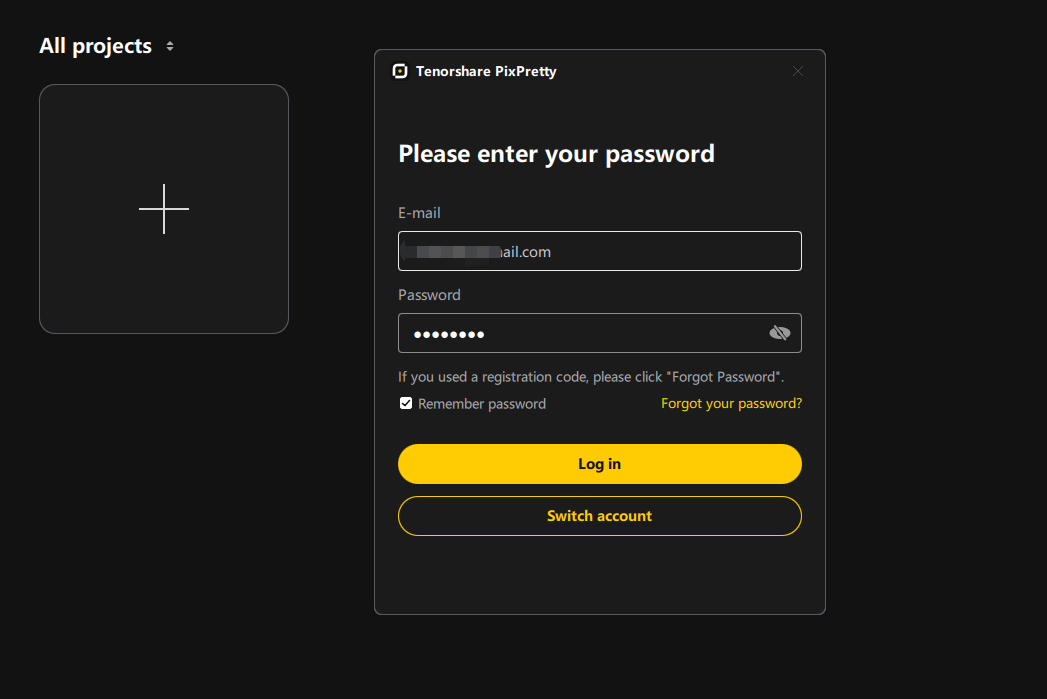
Step 1: Go to the login and project management interface of Tenorshare PixPretty. You can log in to your account securely and create custom projects to keep your photo editing work organized and efficient.
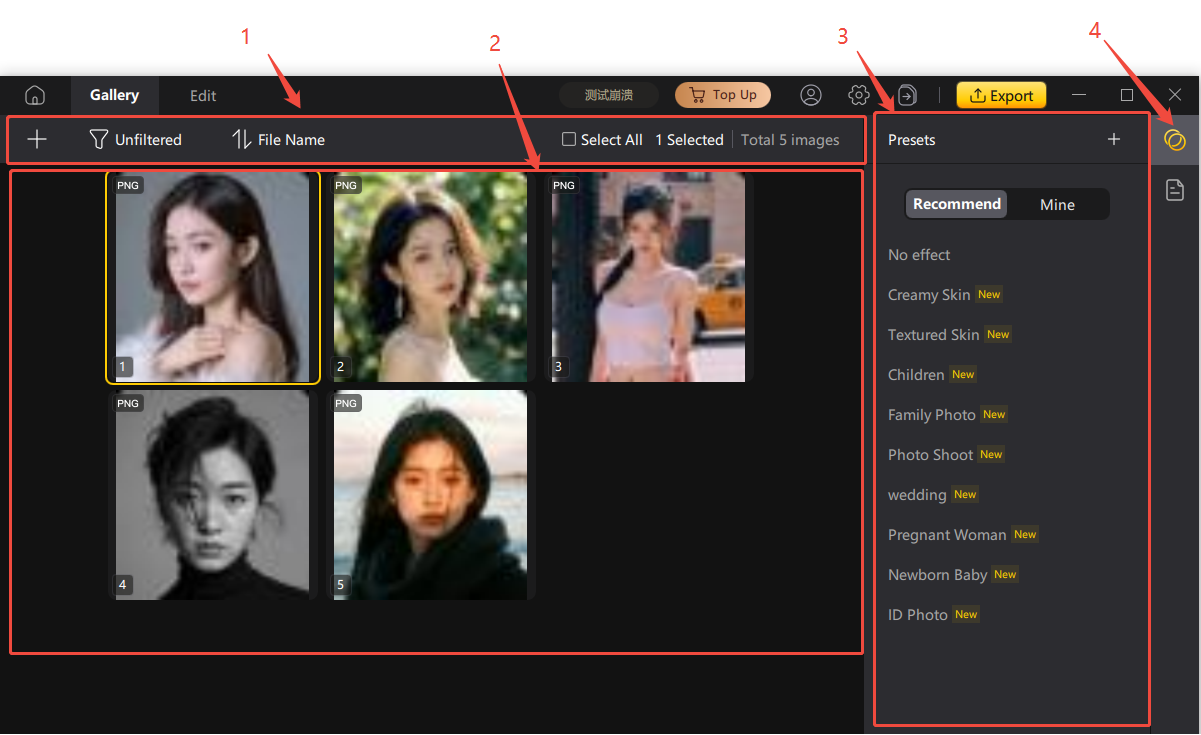
Step 2: Manage all your photos easily in the gallery. Select multiple images and apply professional AI presets with just one click to quickly improve your portraits.
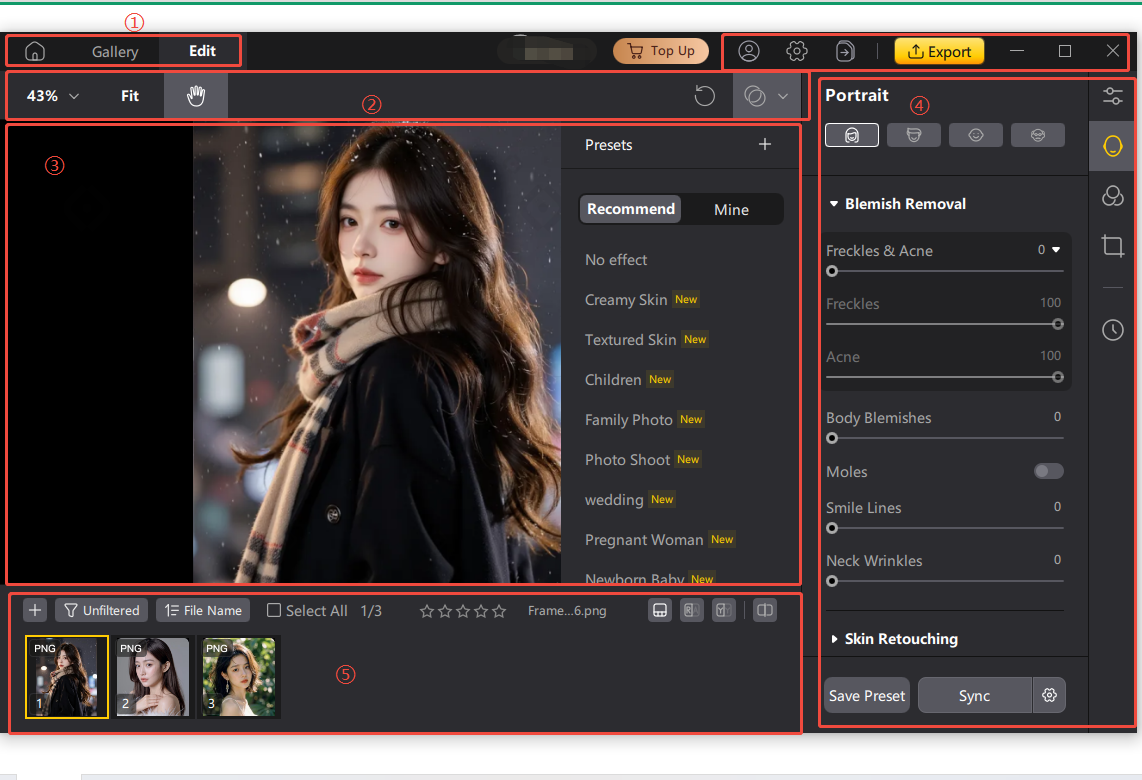
Step 3: Use PixPretty’s intuitive core editing interface to preview your portraits in real time. You can fine-tune details such as skin texture and blemish removal, and create stunning retouching effects effortlessly.
Frequently Asked Questions
-
Is it free to use Subtitle Cat?
Yes, Subtitle Cat is usually free to use to get accessible subtitles. But the source video decides if it's available.
-
Does Subtitle Cat work with all YouTube videos?
No. Subtitles can only be extracted if they already exist within the video. The tool does not independently create caption tracks.
If a creator disables captions, the platform cannot generate them automatically. Availability depends entirely on the source content.
-
Can AI Improve Messy Hair in a Portrait?
Yes, it can. Applications such as PixPretty rely on artificial intelligence to enhance facial details. They refine skin texture. They correct untidy hair. They also eliminate excess shine.
These adjustments help produce polished, professional-looking thumbnails suitable for online platforms.
Conclusion
Strong videos must be attractive and accessible at the same time. When you understand how to use Subtitle Cat, precise captions can help your material connect with a wider audience, as it is better than all the Subtitle Cat alternatives. Using PixPretty to make your thumbnails better will help you get more clicks and initial impressions. People stay interested in videos that are easy to find. They click because the pictures are so eye-catching.
Use Subtitle Cat to get your subtitles and PixPretty to make your thumbnail better so that your content really stands out in 2026.

Hey! 👋
Welcome to Apple tech Hub!
Need help
iPhone setup guide?
New Guide
iOS 27 Tips & Tricks 🎉

Speak Your Mind
Registrer/ Login
Speak Your Mind
Leave a Comment
Create your review for Tenorshare articles
Related articles
All topics
Unlock Android
WhatsApp Tips
iPhone Tips
Change Location
Samsung
Unlock iPhone
Fix Android
Android Tips
iPhone 18
iOS 26
iPhone Fix
SIM Unlock
iOS App
Fix iPhone
Android Recovery
WhatsApp
iPhone 17
Transfer
iOS 27
iCloud Tips
iPad
iPhone Data
Facebook
Transfer Music
iCloud
PDF Editor
Edit PDF
PDF Knowledge
Share this post



By Anna Sherry
2026-10-20 / AI Insights