Easily Block iOS Updates via Tenorshare iCareFone
Have you ever been annoyed by the pop-up “A new iOS update is now available”? If you did, use Tenorshare iCareFone to get rid of automatic iOS updates now!
iCareFone enables you to block iOS updates within easy steps. After that, you’ll not receive the annoying iOS update pop-up notifications and your device will not download the iOS updates automatically!
1. How to block iOS Update using iCareFone?
-
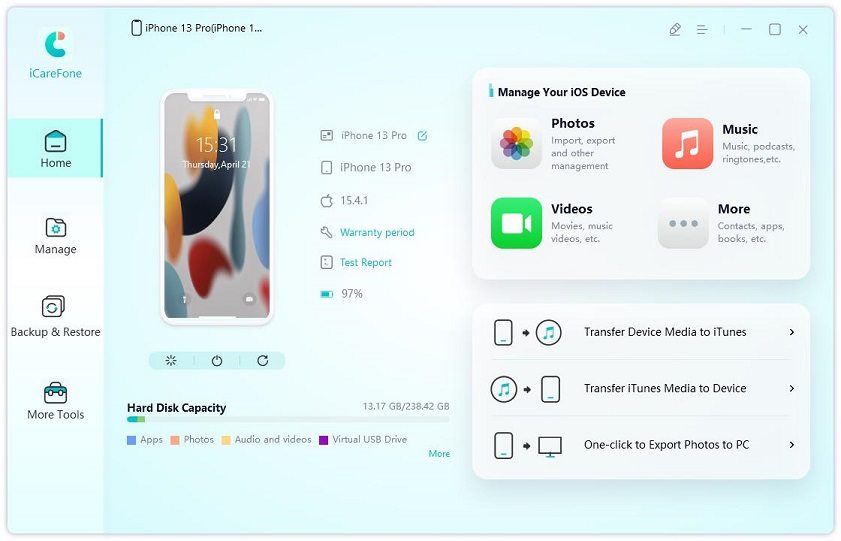
Download and install Tenorshare iCareFone by clicking the buttons below on your computer. Then install it and connect your device to the computer. Click on “More Tools”.
-
Then you will see the “Block iOS Updates” button. Click on it.

-
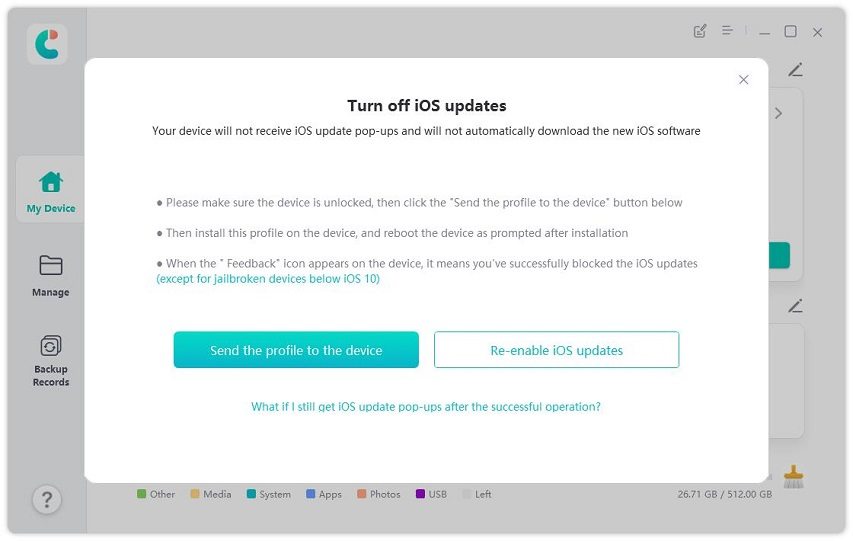
Click the "Send the profile to the device" button to send the profile to your iPhone.
-
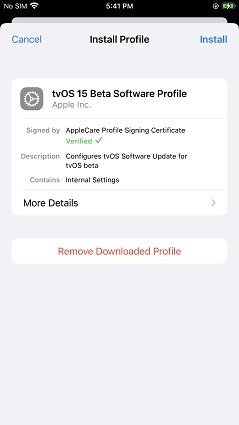
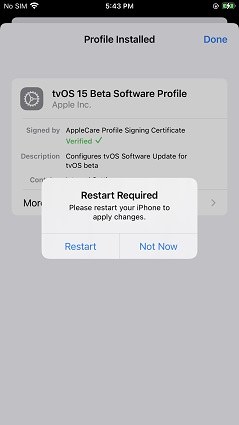
Install the profile on your device. You can find the profile through: Settings - VPN & Device Management - tvOS 15 Beta software profile.
-
Then reboot your device.
-
When you see a “Feedback” icon on your device screen, it means that you’ve successfully turned off automatic iOS updates on your device (except for jailbroken devices below iOS 10).
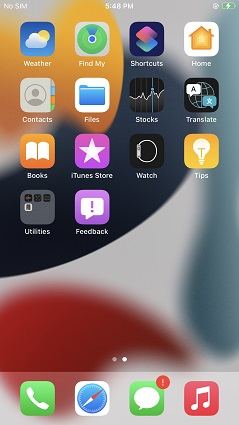


make sure your device is unlocked.


After that, you device will not automatically download the iOS updates and you will no longer receive the iOS updates pop-ups.
2. What if I still get iOS update pop-ups after the successful operation?
- If your device still asks for iOS updates after you’ve successfully installed the profile, then go to Settings-General-iPhone Storage. Find the iOS software.
-
Then remove the tvOS 15 Beta software profile.
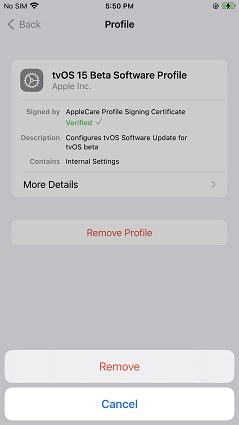
- Now repeat the steps in the first part. (Use iCareFone to send the profile to your device - install the profile on your device - reboot your device.)