How to Check and Remove MDM on Your iPhone/iPad
This tutorial shows you how to confirm whether Mobile Device Management (MDM) is enabled on your device and covers three proven removal methods, including Apple’s native option and the third-party tool Tenorshare 4uKey.
1. How to Check if MDM Is Enabled
-
Open Settings. If the banner “This iPhone is supervised and managed” appears at the top, the device is under MDM control.
-
Go to Settings › General › VPN & Device Management. A configuration profile or management entry here also confirms MDM is enabled.

2. Three Ways to Remove MDM (incl. 4uKey)
-
Method 1 — Built-in iOS Removal (password required):
Tap Settings › General › VPN & Device Management › Remove Management, then enter the admin password.
-
Method 2 — Factory Reset (erases all data):
Go to Settings › General › Transfer or Reset iPhone › Erase All Content and Settings and follow the prompts.
-
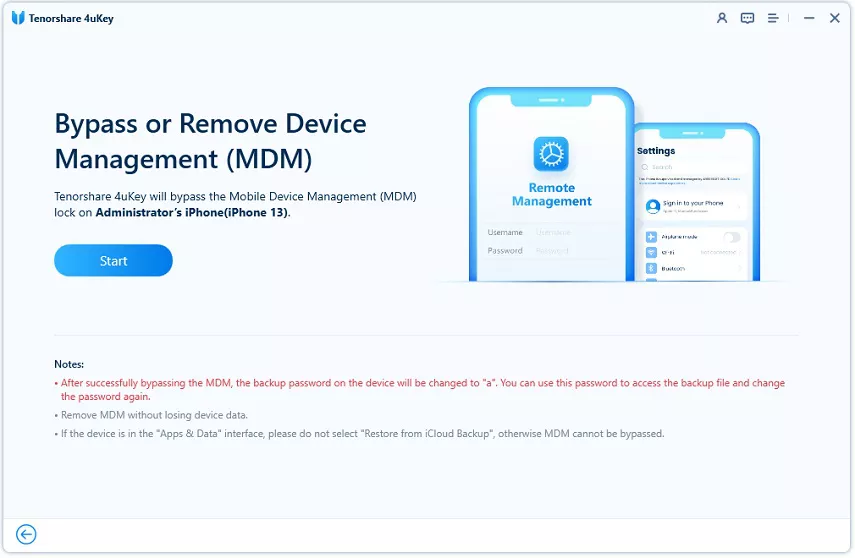
Method 3 — Tenorshare 4uKey (no password, keeps data) ⇢ Recommended
Install 4uKey, connect your device, choose Bypass/Remove MDM, and follow the on-screen steps.


3. Method Comparison & Best-Use Scenarios
The table below highlights the key differences:

- If you bought a second-hand iPhone/iPad, have no admin credentials, or want to avoid data loss, Tenorshare 4uKey is the most hassle-free option.
- Built-in removal is fastest—provided you know the MDM password.
- A factory reset is effective but erases everything, so back up first if you choose this method.