How to View Samsung System Version
You may need to select the version of your Samsung device in the process. Wondering how to know your Samsung system version? Check here and get the answer.
If you can unlock your phone to use as usual, then it is easy. Go to Settings > About Device/About Phone. Then scroll down to see Android version. For some users, you need to tap on Software Information, and the system version is displayed here. But what if you cannot unlock your Samsung device? Then follow the below steps and put your device into download mode to view it.
For Samsung with Home Button
- Turn off your Samsung phone and connect it to the computer via a USB cable.
- Long press the Volume Up, Home and Power buttons at the same time. Don't release them until you see the Samsung logo.
- Wait for it to enter recovery mode when "Installing System Update" or "No command" is shown on the screen.
-
You can then check the system version in recovery mode as shown below.
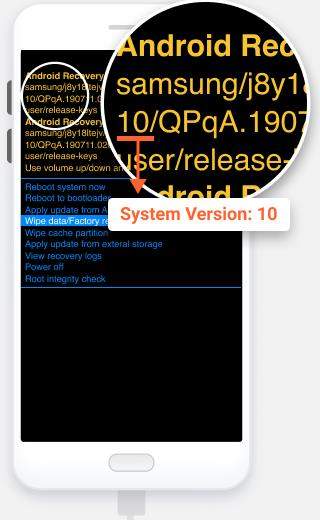
- After you know the system version, select "Reboot system now" to restart your Samsung device.

For Samsung without Home Button
- Turn off your Samsung device and connect it to your computer with USB cable.
- Press and hold the Volume Up, Power and Bixby buttons (if has), and release them when the Samsung logo is displayed.
- Wait for your device to enter recovery mode when you see "Installing System Update" or "No command" on the screen.
-
Check the system version in recovery mode as the below picture shows.
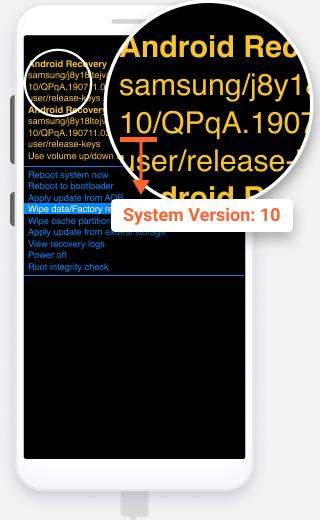
- At last, choose "Reboot system now" to restart your Samsung phone.

If you face the problem of how to know Samsung system version, then use the above methods.