iAnyGo iOS App Installation New Guide
How to install iAnyGo iOS App? Follow the new guide below!
Step 1: Download & Install
Please copy and paste the following links directly into the Safari browser to download the two Apps to your iPhone:
1. iAnyGo iOS App:
itms-services://?action=download-manifest&url=https%3A%2F%2Fdownload.tenorshare.com%2Fdownloads%2FiAnyGoiOS.plist
2.PoGo Custom App:
itms-services://?action=download-manifest&url=https%3A%2F%2Fdownload.tenorshare.com%2Fdownloads%2FPoGo.plist
Step 2: Trust the Developer
After successful installation, please open the app and follow the steps below to trust the developer (required for first-time installation):
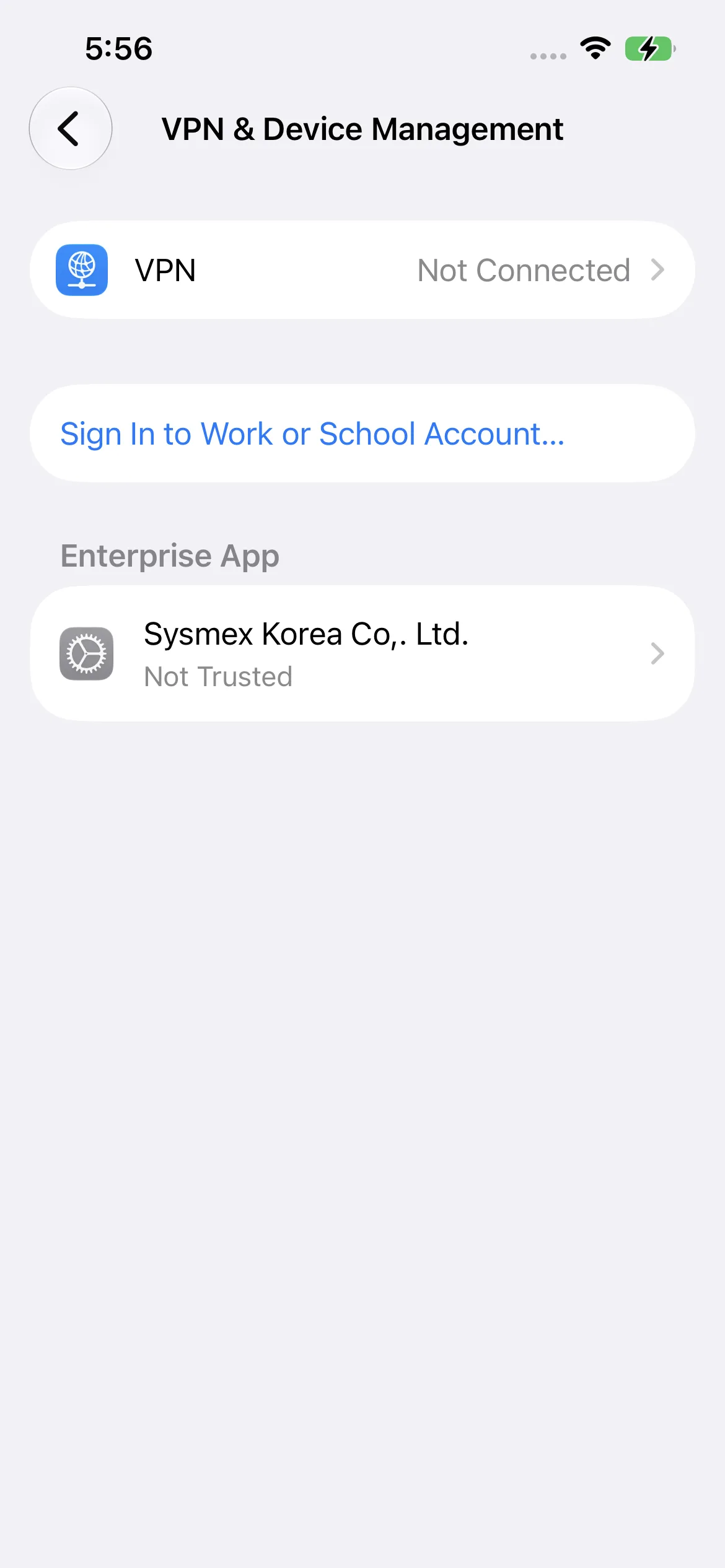
1.Go to Settings > General > VPN & Device Management;
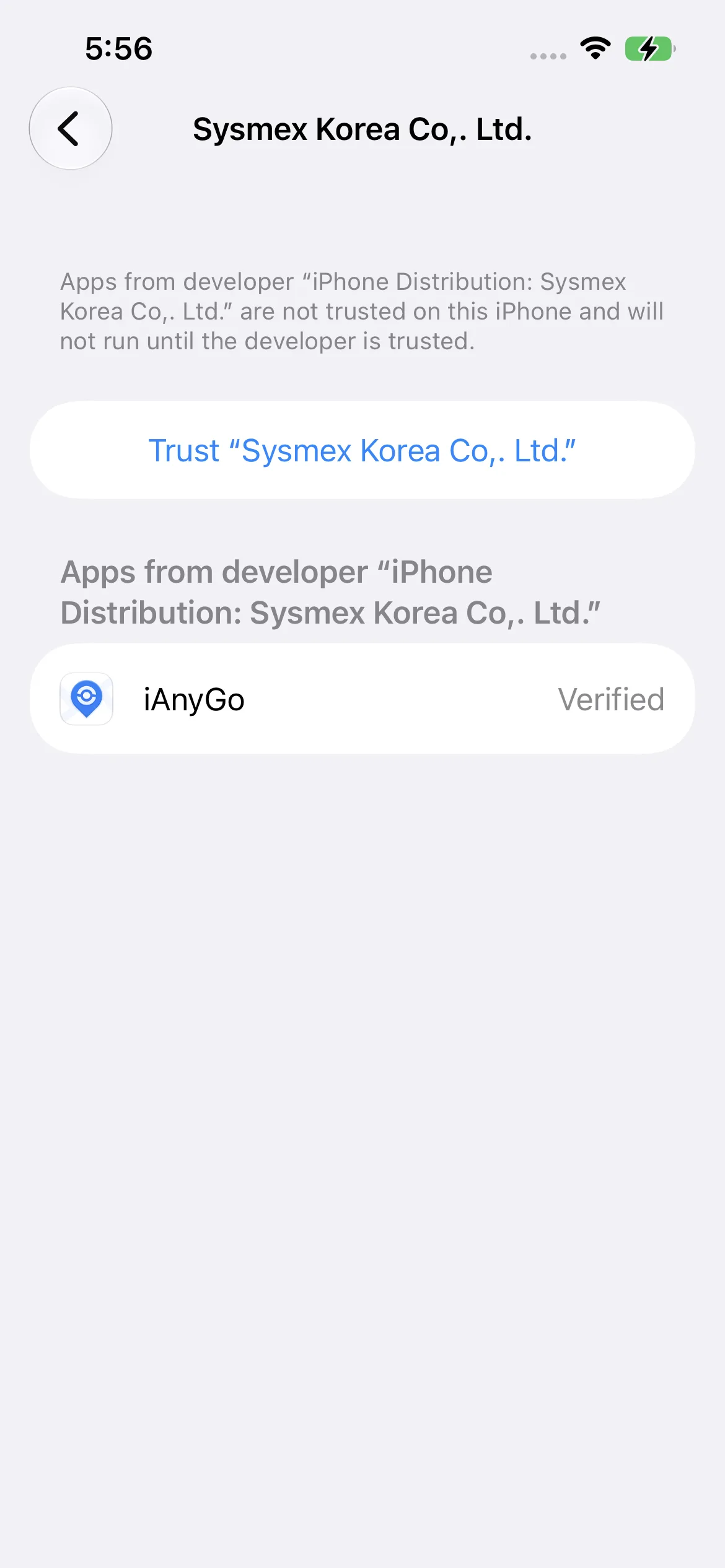
2.Find the untrusted Enterprise App and click Trust;
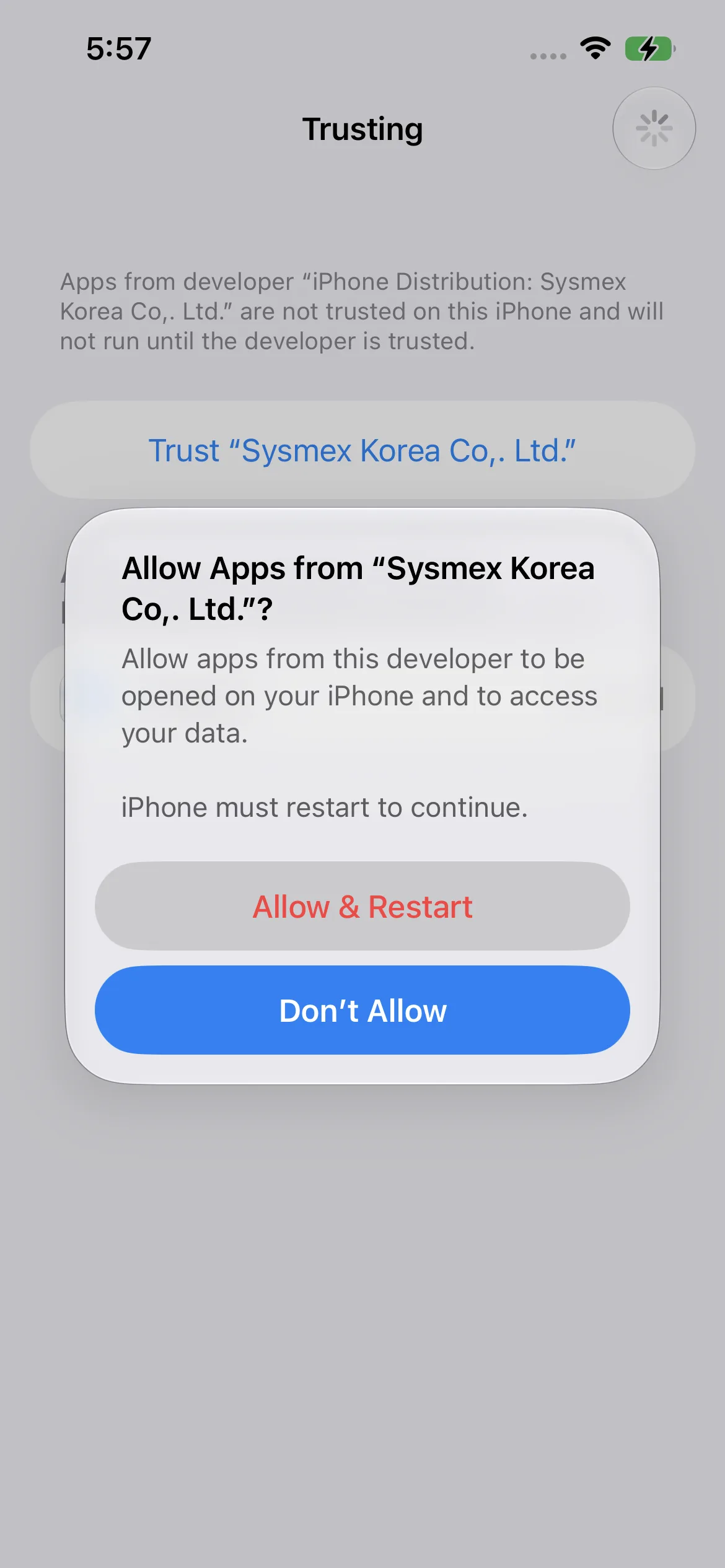
3.Click Allow & Restart to trust the Developer.
Important Notes:
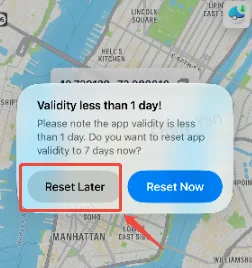
After completing the developer trust settings, when reopening the iAnyGo iOS App, the following Validity pop-up will appear. Please do not click the “Reset Now” button — just ignore it or tap “Reset Later”.
Step 3: Install Resources
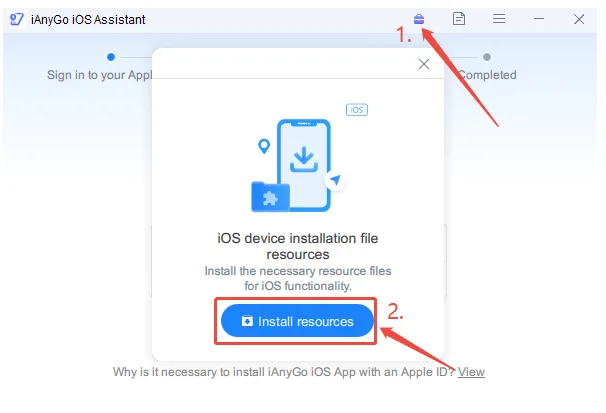
The final step is to open the link below, install the iAnyGo iOS Assistant toolkit according to the instructions, and download the required resources as the picture below shows; once the resources are installed, restart the iAnyGo app on your iPhone, then it will work properly. iAnyGo iOS Assistant Download
link:https://www.tenorshare.com/guide/ianygo-ios-assistant.html